Upload your photo
Drag in a pet, a portrait, a landscape or a wedding shot — anything you would hang on a wall. It works the same on a phone straight from your camera roll.
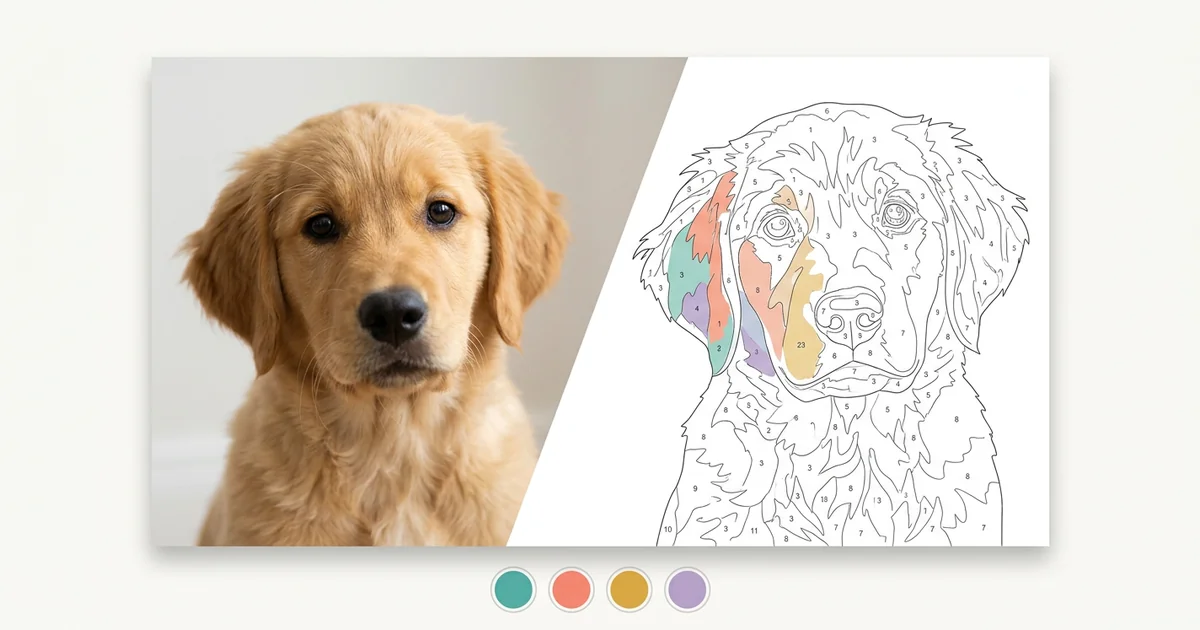
Upload a photo and GetPaintByNumber converts it into a numbered outline with a matched colour palette in seconds. Download a printable template, or keep tuning the colours until it looks exactly right.
Drop your photo here
or click to choose a file — you can paste one too
Supports JPG, PNG, WEBP, GIF, AVIF and HEIC · Max 20 MB · Processed on your device
Preparing…
Nothing is uploaded. The conversion runs entirely inside this page, so it also works offline once loaded.
Three steps, about two minutes, and nothing to install.
Drag in a pet, a portrait, a landscape or a wedding shot — anything you would hang on a wall. It works the same on a phone straight from your camera roll.
The generator groups similar colours, cleans up noise and drops a number into every region. Slide the colour count and detail until the balance of shapes looks paintable.
Download the numbered outline as a high-resolution PNG, or open the print sheet and save it as a PDF that includes a matched colour guide with hex codes.
Four downloads with every design. No email required, no watermark applied.
Order a Custom Paint by Numbers Kit
An A4 / Letter print sheet with the numbered outline on page one and the colour guide on page two — ready for your printer or a print shop.
Up to 2,400 px on the long edge with crisp lines, so you can enlarge it, trace it onto canvas or drop it into a design tool.
Every paint number comes with its exact hex value so you can mix acrylics accurately or match them to a paint set you already own.
A flat-colour version of your photo showing what the finished painting should look like — the most useful reference while you work.
Clear subject, decent light, not too busy in the background. Here is what different photo types look like after conversion.
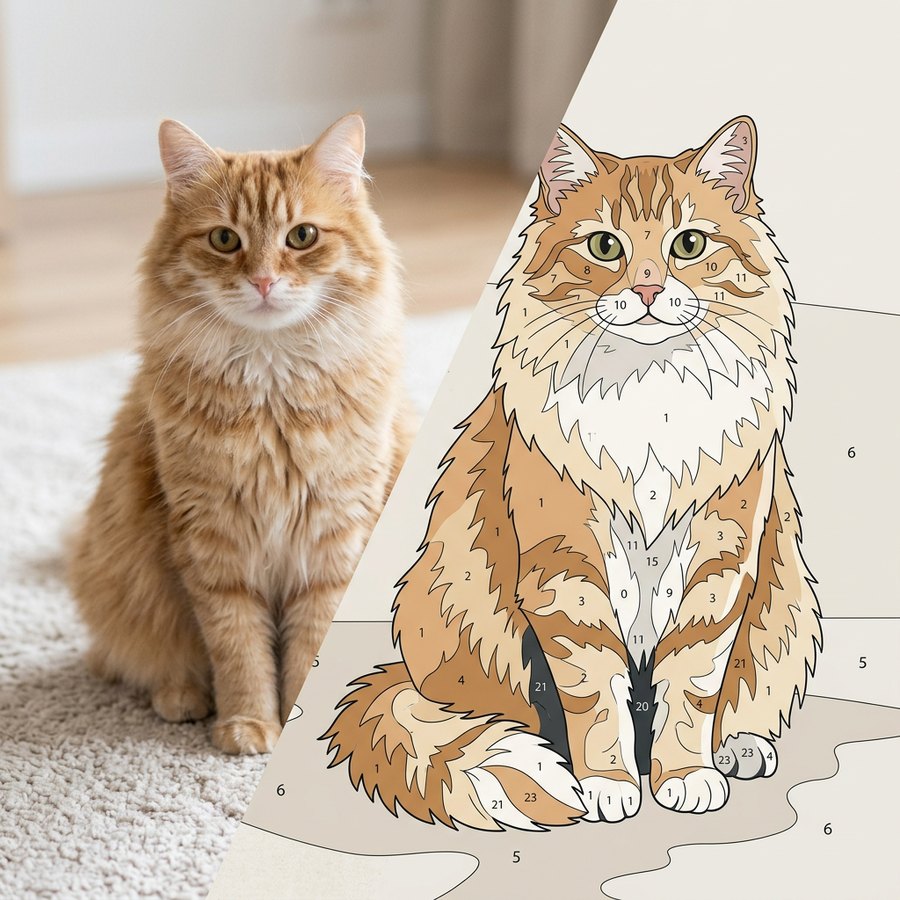
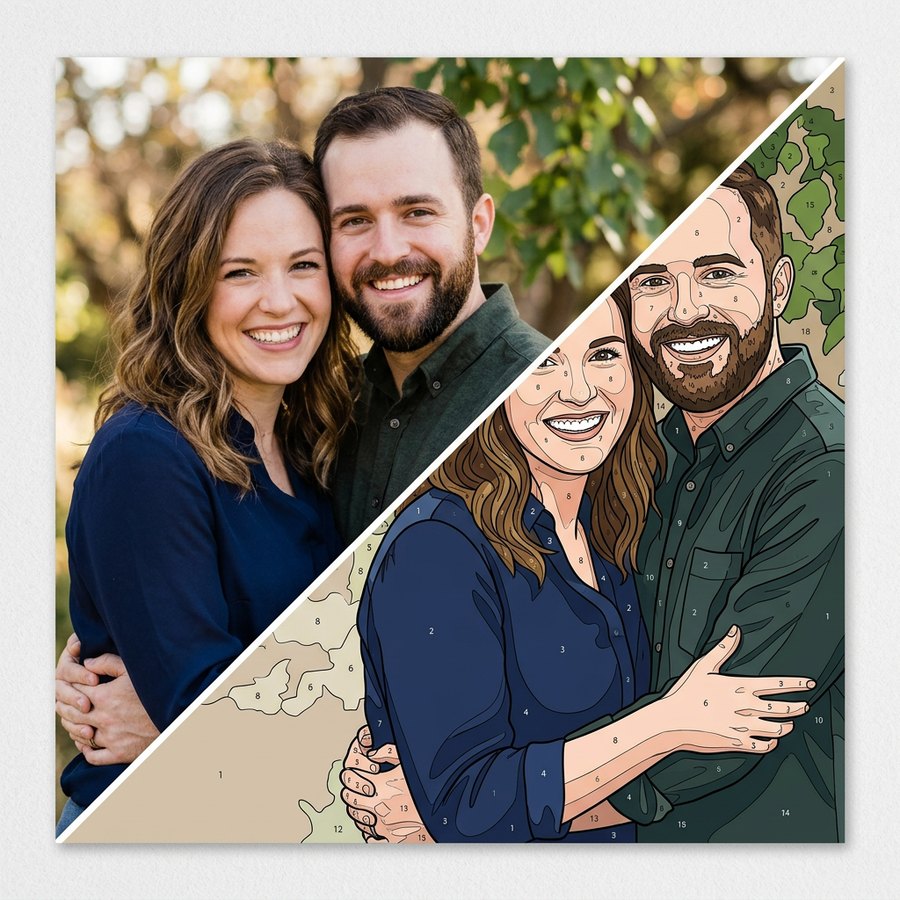
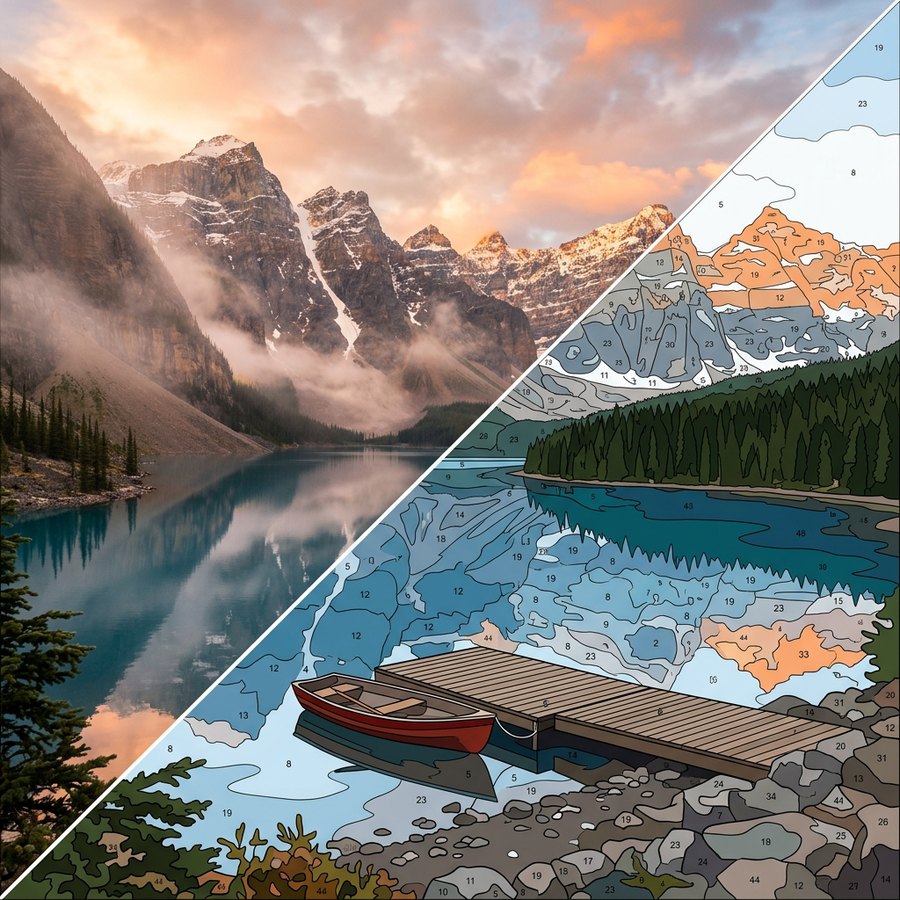
Most custom paint-by-number services make you pay before you see anything. Here you can generate as many versions as you want and only keep the one you love.
The conversion runs in JavaScript on your own device. Nothing is uploaded, nothing is stored, and no account is ever created.
Colour count, detail, smoothing, line weight and number visibility are all adjustable, so a template for a six-year-old and one for an experienced painter come from the same photo.
Shoot, upload from your camera roll and download — the whole flow works on a phone with no desktop needed.
Downloads are clean. What you preview is exactly what you print, at full resolution.
A printed template of a pet, a wedding photo or a family house makes a personal present that the recipient finishes themselves.
A paint-by-number template is a colour-quantised version of a photograph. Instead of the millions of shades in a digital image, the picture is reduced to a small set of flat paints, connected pixels of the same paint are grouped into regions, and each region is labelled with the number of the paint that fills it.
GetPaintByNumber follows the same pipeline a professional kit maker uses:
| Kids, ages 5–10 | 8–12 colours, detail 20–30%, high smoothing. Large shapes, few numbers. |
|---|---|
| Beginner adult | 14–20 colours, detail 40–55%. A weekend project on A4. |
| Pet portrait | 20–28 colours, detail 60–70%. Fur needs mid-tones to read correctly. |
| Human portrait | 24–36 colours, detail 50–60%. More paints for skin, slightly fewer shapes. |
| Landscape / seascape | 12–20 colours, detail 45%, smoothing high. Skies should stay as broad bands. |
| Bold poster look | 4–8 colours, detail 15%. Graphic, screen-print style. |
A practical rule: the smallest region on your printed sheet should be no narrower than about 3 mm. If the preview looks like confetti, reduce the detail slider before you reduce the colours — you will keep the richness of the palette while making the shapes paintable.
For a print-at-home project, use 200 gsm or heavier paper so acrylic paint does not buckle it. To paint on real canvas, print the outline, rub graphite over the back of the sheet, tape it to a stretched canvas and trace the lines with a ballpoint pen — the classic transfer method, and the reason the hi-res PNG download exists.
Studio tip: paint every area of number 1 across the whole canvas before moving to number 2. It saves paint, prevents muddy edges and keeps you from losing track of which regions are done.
Want the full walkthrough, including brush choices and how to fix mistakes? Read the complete beginner's guide to painting by numbers.
Yes — completely free, with no account to create. Generate unlimited designs and download the numbered outline, the colour reference and the printable PDF at no cost. Nothing is watermarked.
No. Every step runs locally in your browser with HTML5 Canvas and JavaScript. Your photo is never transmitted to us or to anyone else, so private family and pet photos stay on your device. Once the page has loaded, it even works offline.
8–12 for children or a quick project, 16–24 for a balanced adult project, and 24–36 for portraits and detailed landscapes where skin tones and foliage need extra gradations. Above about 40 the regions usually become too small to paint by hand.
Good light, a clear subject and an uncluttered background. Close-up pet and people portraits, single-subject shots and bold landscapes all work well. Very dark, blurry or crowded group photos produce noisy templates — crop tightly to the subject first and you will get a much better result.
A4 or US Letter is fine up to about 20 colours. At 24 colours or more, print at A3 or transfer onto a 12 × 16 inch canvas so the smallest numbered areas stay comfortable to paint.
Acrylics — they are opaque, dry quickly and cover the printed numbers in one or two coats. Gouache also works on heavy paper. Avoid watercolour: it is too transparent, so the guide lines and numbers show through the finished painting.
The template is derived from your own image, so the rights follow your source photo. If you own or are licensed to use that photo, you may use the output however you like, including commercially. We claim no rights over anything you generate here.
A number is only placed where there is genuinely room for it to be legible. Very thin slivers — a whisker, a highlight in an eye — are left blank on purpose. Use the colour preview tab to see which paint belongs there, or raise the smoothing slider to merge those slivers into their neighbours.
Yes. The interface is built mobile-first: tap the upload area, pick a photo from your camera roll or take a new one, adjust the sliders and download. Large photos take a few seconds longer on a phone than on a laptop, but the result is identical.
Upload an image and get a free, watermark-free preview in seconds. Nothing to install, nothing to sign up for.